Take notes while a lecture plays. Click one to go back to that second.
KeJi is a small Chrome / Edge extension. Every note remembers the moment in the video. When you review, click it and the video jumps back to the second you wrote it.
Free · No sign-up · Notes stay in your own browser · Chrome and Edge on Windows / Mac
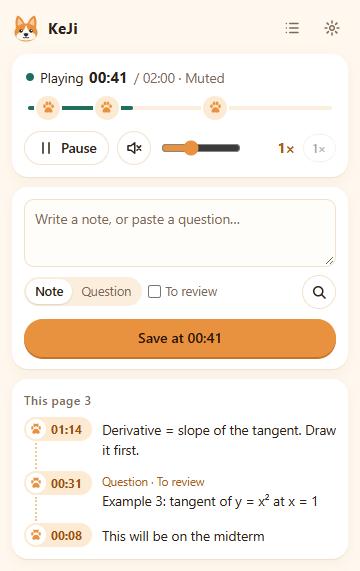
This demo is live: the video pauses when you start typing. Click a time or a paw on the progress bar to jump back.
One job, done well: keep the second, then bring you back
Like a corgi that fetches.
Write as you watch
Saving keeps the video’s current time. The video pauses when you start typing and resumes after you save, so you don’t miss anything.
Click to jump back
Click a note’s time, or a paw on the progress bar, and the video returns to that second. If the page is closed, KeJi reopens it and waits for the video.
Never in the way
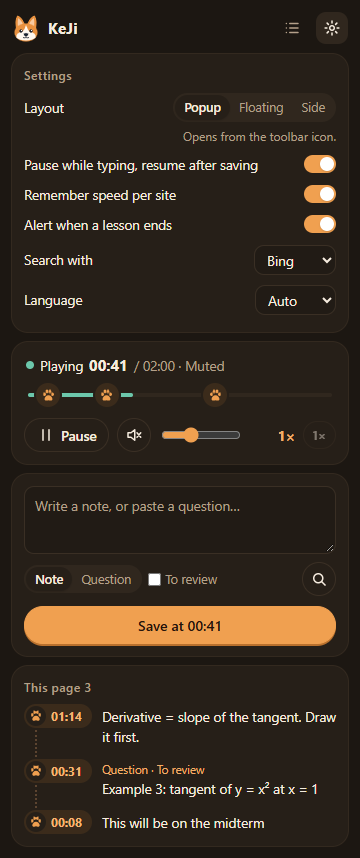
Choose a popup, a floating panel or the side panel. The floating panel drags and folds; the side panel makes room so the whole video stays visible.
- Speed 0.5–2×
- Alt+Shift+N notes in fullscreen
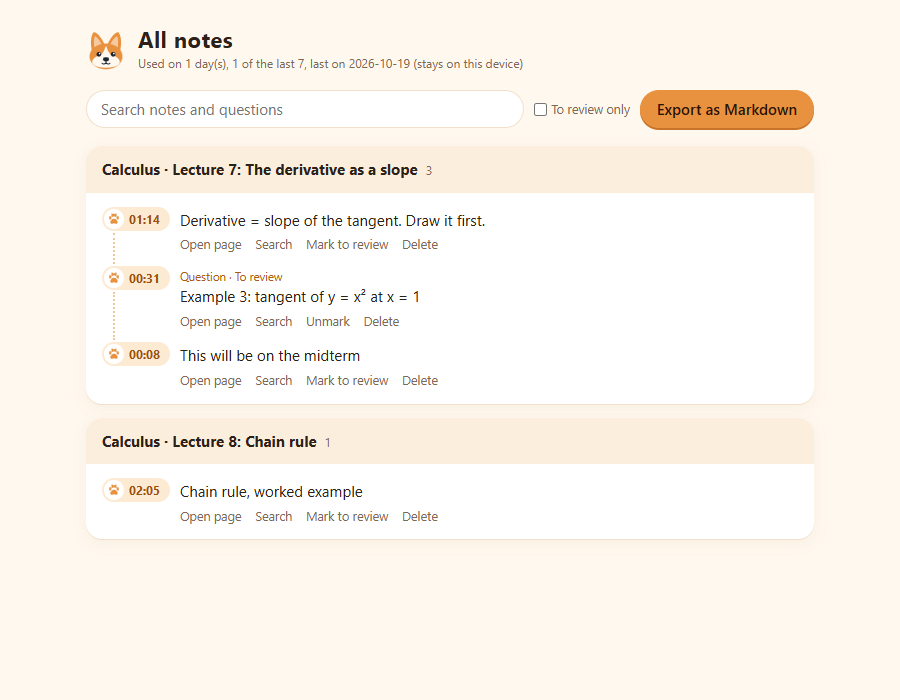
- Notes grouped by video
- Search and mark to review
- Export to Markdown (times are links)
- Right-click to save a question
- English / 中文
- Dark mode
What it looks like
Light and dark follow your system. It fits in on YouTube.
Install (about 3 minutes)
KeJi is not in the extension store yet, so you load it once in Developer mode.
- Download and unzipDownload the zip and unzip it. Move the
kejifolder somewhere permanent, such as Documents. - Open the extensions pageIn Chrome type
chrome://extensionsin the address bar. In Edge typeedge://extensions. - Turn on Developer modeTop right in Chrome, left side in Edge.
- Load the extensionClick “Load unpacked” and choose the
kejifolder itself. - Pin the corgiClick the puzzle icon in the toolbar and pin KeJi.
- Reload your lecture pageReload any video page that was already open. That’s it.
Shortcuts
- Alt+Shift+C open KeJi
- Alt+Shift+K play / pause
- Alt+Shift+N take a note on the page (works in fullscreen)
On Mac, Alt is Option. If a key does nothing, set it at chrome://extensions/shortcuts.
What it never does
- Change watch time, progress or completion
- Answer or submit anything, or ask for a password
- Send your notes anywhere: there is no server
If the browser asks you to disable developer-mode extensions at startup, choose Keep. To upgrade, unzip over the old folder and click reload on the KeJi card. Your notes are kept.